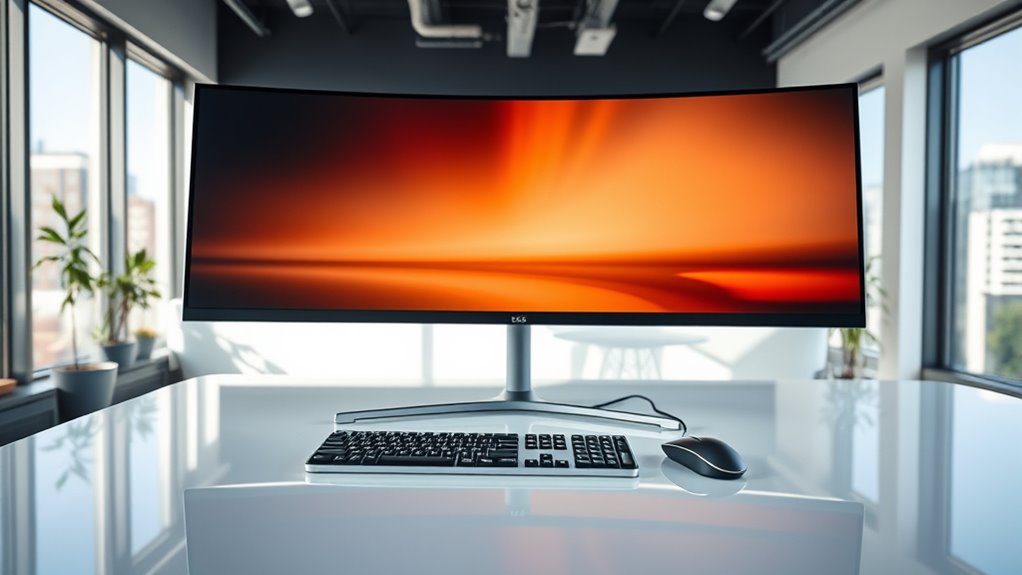

For most office setups, I’d start with the Dell 34 Plus USB-C Curved Monitor S3425DW: its 34-inch workspace and USB-C connection make it a strong all-around fit for everyday desk work. The Samsung ViewFinity S65TC stands out for buyers who value connectivity, while the Samsung 49-Inch Curved Dual QHD Ultrawide Monitor offers room to keep several work windows open side by side. The main tradeoffs are desk space, connection needs, screen resolution, and whether a gaming-focused refresh rate adds value to your workday. Read on for the full comparison, including options for smaller desks, simpler setups, and wide-screen multitasking.

Get your wardrobe favorites delivered free with Prime
- Fast, free delivery on millions of items
- Prime Video, Amazon Music and more included
- Member-only deals all year
Key Takeaways
- 34 inches is the lineup’s practical center. These models offer a wide workspace without requiring the desk depth and width of a 49-inch screen.
- USB-C separates office-first options from many gaming-focused picks. The Dell S3425DW and Samsung ViewFinity S65TC are worth a closer look if you want a simpler laptop connection.
- 49-inch screens trade desk simplicity for window space. The Samsung and Amzfast Dual QHD models, along with the Odyssey G9, suit broad multitasking setups but need more room and careful placement.
- High refresh rates are not the same as better office value. Several Sceptre and gaming-branded models offer faster motion, but office buyers should weigh that against connection features and everyday usability.
- The LG 34U530A-W fills a different niche. Its WFHD IPS panel makes it a less demanding choice for basic office tasks, while buyers who need sharper detail should focus on the QHD and Ultra-WQHD models.
| LG 34SR60QC-W 34-Inch Curved QHD Smart Monitor |  | Best for Office Work and Streaming | Screen size: 34 inches | Resolution: 3440 × 1440 | Aspect ratio: 21:9 | VIEW ON AMAZON | See Our Full Breakdown |
| Samsung ViewFinity S65UA 34-Inch Curved Ultra-WQHD Monitor |  | Best for One-Cable Laptop Desks | Screen size: 34 inches | Resolution: 3440 × 1440 | Aspect ratio: 21:9 | VIEW ON AMAZON | See Our Full Breakdown |
| Sceptre C345B-QUT168 34-Inch Curved Ultrawide WQHD Gaming Monitor |  | Best for Office Work Plus High-Refresh Gaming | Screen size: 34 inches | Resolution: 3440 × 1440 | Aspect ratio: 21:9 | VIEW ON AMAZON | See Our Full Breakdown |
| Dell 34 Plus USB-C Curved Monitor S3425DW |  | Best for Color-Rich Hybrid Work | Screen size: 34 inches | Resolution: 3440 × 1440 | Aspect ratio: 21:9 | VIEW ON AMAZON | See Our Full Breakdown |
| Samsung 34-Inch Odyssey G5 Ultra-Wide Curved Gaming Monitor |  | Best for Immersive Curved Gaming | Screen size: 34 inches | Resolution: 3440 × 1440 | Aspect ratio: 21:9 | VIEW ON AMAZON | See Our Full Breakdown |
| Sceptre C345B-QU240T 34-Inch Curved Ultrawide Gaming Monitor |  | Best for High-Refresh Office Work | Screen size: 34 inches | Resolution: 3440 × 1440 | Aspect ratio: 21:9 | VIEW ON AMAZON | See Our Full Breakdown |
| Samsung ViewFinity S65TC 34-Inch Ultra-WQHD Curved Monitor |  | Best for Laptop Docking | Screen size: 34 inches | Resolution and aspect ratio: 3440 × 1440, 21:9 | Panel and curve: VA LCD, 1000R | VIEW ON AMAZON | See Our Full Breakdown |
| Sceptre 34-Inch Curved Ultrawide WQHD Monitor, 3440 × 1440, Up to 180Hz, Black (C345B-QUT168) |  | Best for Split-Screen Multitasking | Screen size: 34 inches | Resolution and aspect ratio: 3440 × 1440, 21:9 | Curvature: 1500R | VIEW ON AMAZON | See Our Full Breakdown |
| Amzfast 49-Inch Curved Dual QHD Ultrawide Monitor, 120Hz, AMZG49C7U |  | Best for a Single-Screen Dual-Monitor Setup | Screen size: 49 inches | Resolution and aspect ratio: 5120 × 1440, 32:9 | Panel and curve: VA, 1500R | VIEW ON AMAZON | See Our Full Breakdown |
| Samsung 49-Inch Curved Dual QHD Ultrawide Monitor |  | Best Premium Productivity Pick | Screen size: 49 inches | Resolution and aspect ratio: 5120 × 1440, 32:9 | Curvature: 1000R | VIEW ON AMAZON | See Our Full Breakdown |
| Sceptre E345W 34-Inch Ultrawide Monitor, 3440 × 1440, 115 Hz |  | Best for Multi-Input Workstations | Screen size: 34 inches | Resolution: 3440 × 1440 | Aspect ratio: 21:9 | VIEW ON AMAZON | See Our Full Breakdown |
| Samsung 49-inch Odyssey G9 G91F Curved DQHD Gaming Monitor, 144Hz |  | Best for Maximum Desktop Width | Screen size: 49 inches | Resolution: 5120 × 1440 | Aspect ratio: 32:9 | VIEW ON AMAZON | See Our Full Breakdown |
| LG 34U60ZB-B 34-Inch Curved UltraWide WQHD 120Hz Monitor |  | Best for an Adjustable Curved Workspace | Screen size: 34 inches | Resolution: 3440 × 1440 | Aspect ratio: 21:9 | VIEW ON AMAZON | See Our Full Breakdown |
| Samsung 34-inch ViewFinity S50GC Ultra-WQHD Monitor |  | Best for Office Multitasking Features | Screen size: 34 inches | Resolution: 3440 × 1440 | Aspect ratio: 21:9 | VIEW ON AMAZON | See Our Full Breakdown |
| LG 34U530A-W 34-inch UltraWide WFHD IPS Monitor |  | Best for USB-C and Flexible Positioning | Screen size: 34 inches | Resolution: 2560 × 1080 | Aspect ratio: 21:9 | VIEW ON AMAZON | See Our Full Breakdown |
| ultra wide monitor for office | Screen size | Refresh rate | Resolution | Aspect ratio |
|---|---|---|---|---|
| LG 34SR60QC-W 34-Inch Curved Q | 34 inches | 100Hz | 3440 × 1440 | 21:9 |
| Samsung ViewFinity S65UA 34-In | 34 inches | 100Hz | 3440 × 1440 | 21:9 |
| Sceptre C345B-QUT168 34-Inch C | 34 inches | Up to 165Hz | 3440 × 1440 | 21:9 |
| Dell 34 Plus USB-C Curved Moni | 34 inches | 120Hz | 3440 × 1440 | 21:9 |
| Samsung 34-Inch Odyssey G5 Ult | 34 inches | 165Hz | 3440 × 1440 | 21:9 |
| Sceptre C345B-QU240T 34-Inch C | 34 inches | 240Hz | 3440 × 1440 | 21:9 |
| Samsung ViewFinity S65TC 34-In | 34 inches | 100Hz | — | — |
| Sceptre 34-Inch Curved Ultrawi | 34 inches | — | — | — |
| Amzfast 49-Inch Curved Dual QH | 49 inches | 120Hz via DisplayPort 1.4 | — | — |
| Samsung 49-Inch Curved Dual QH | 49 inches | 120Hz | — | — |
| Sceptre E345W 34-Inch Ultrawid | 34 inches | Up to 115 Hz via DisplayPort; up to 100 Hz via HDMI | 3440 × 1440 | 21:9 |
| Samsung 49-inch Odyssey G9 G91 | 49 inches | 144 Hz | 5120 × 1440 | 32:9 |
| LG 34U60ZB-B 34-Inch Curved Ul | 34 inches | 120 Hz | 3440 × 1440 | 21:9 |
| Samsung 34-inch ViewFinity S50 | 34 inches | 100 Hz | 3440 × 1440 | 21:9 |
| LG 34U530A-W 34-inch UltraWide | 34 inches | 100 Hz | 2560 × 1080 | 21:9 |
More Details on Our Top Picks
LG 34SR60QC-W 34-Inch Curved QHD Smart Monitor
The LG stands apart from the office-first Samsung ViewFinity S65UA by adding webOS23 streaming and AirPlay 2, so it can handle video calls or documents during the day and serve as a screen for entertainment afterward. Its 34-inch, 3440 × 1440 display gives you room for side-by-side windows, while the 1800R curve is gentler than the Samsung’s 1000R bend. The 100Hz refresh rate also keeps scrolling and everyday motion smooth. The tradeoff is that it lacks the S65UA’s stated 90W USB-C laptop charging, a more useful feature for a tidy one-cable desk. Streaming also depends on internet access, and the Magic Remote is sold separately. I’d choose this LG when built-in smart features matter more than streamlined laptop docking.
Pros:- 3440 × 1440 resolution and 21:9 format provide useful room for side-by-side office windows.
- webOS23 adds built-in access to streaming apps and LG Channels.
- AirPlay 2 and HomeKit support suit Apple-device households.
- 100Hz refresh rate makes scrolling and motion smoother than a basic 60Hz display.
Cons:- No USB-C power delivery is listed, making laptop docking less convenient than on the Samsung ViewFinity S65UA.
- Streaming services need an internet connection and may require subscriptions.
- LG Magic Remote is sold separately.
Best for: Hybrid workers who want an ultrawide for split-screen office tasks and a built-in streaming display after work.
Not ideal for: Laptop users seeking one-cable video, data, and high-wattage charging; the Samsung ViewFinity S65UA lists USB-C charging up to 90W.
- Screen size:34 inches
- Resolution:3440 × 1440
- Aspect ratio:21:9
- Curvature:1800R
- Refresh rate:100Hz
- Operating system:webOS23
- Ports:2 HDMI, 3 USB
- Wireless features:Apple AirPlay 2, HomeKit
Our verdict“Choose the LG if you want an office ultrawide that can also stream without a separate media device.”
Samsung ViewFinity S65UA 34-Inch Curved Ultra-WQHD Monitor
For a laptop-centered office, the ViewFinity S65UA has the clearest practical advantage in this group: USB-C with up to 90W charging, plus data transfer and a listed Ethernet connection. That can cut down on desk cables compared with the Dell S3425DW, whose USB-C power delivery is rated up to 65W. The Samsung pairs that connectivity with a height-adjustable stand, matte 34-inch display, and eye-care features, all useful for a full workday. Its 3440 × 1440 resolution supports multiple windows, while the 1000R curve wraps more closely around the viewer than the LG 34SR60QC-W’s 1800R curve. That stronger curve won’t suit every desk or viewing preference. At 350 cd/m², its brightness may also feel limited in a sunlit office, and the 34-inch setup needs ample desk space.
Pros:- USB-C supports data transfer and up to 90W laptop charging.
- Height-adjustable stand helps tailor screen position to a seated workspace.
- Matte finish and TÜV-certified eye-care features support extended office use.
- DisplayPort, HDMI, USB-C, and Ethernet provide a useful mix of connections.
Cons:- The 1000R curve is more pronounced than the LG 34SR60QC-W’s 1800R curve and may not suit every viewer.
- Listed brightness of 350 cd/m² may be limiting in a very bright room.
- The 34-inch panel and stand require substantial desk space.
Best for: Laptop-based professionals who want a curved ultrawide, substantial USB-C charging, and a more organized desk.
Not ideal for: People with shallow desks or bright, sunlit workspaces; its large curved screen takes room, and listed brightness is 350 cd/m².
- Screen size:34 inches
- Resolution:3440 × 1440
- Aspect ratio:21:9
- Curvature:1000R
- Refresh rate:100Hz
- Brightness:350 cd/m²
- USB-C charging:Up to 90W
- Connectivity:DisplayPort, Ethernet, HDMI, USB Type-C
Our verdict“Pick the ViewFinity S65UA if laptop charging and a height-adjustable, cable-conscious office setup matter more than built-in streaming.”
Sceptre C345B-QUT168 34-Inch Curved Ultrawide WQHD Gaming Monitor
The Sceptre makes the most sense for a buyer who splits a desk between office work and fast-paced gaming. Its 3440 × 1440 resolution gives documents and windows the same broad workspace offered by the Samsung ViewFinity S65UA, but its 165Hz refresh rate and 1 ms MPRT response time are much more gaming-focused than that Samsung’s 100Hz panel. FreeSync Premium and several HDMI and DisplayPort connections add flexibility for a mixed-use setup. For office tasks alone, the extra speed is less compelling than the S65UA’s USB-C laptop charging or the Dell S3425DW’s USB-C and built-in speakers. The listed 280 cd/m² brightness may be a constraint in a bright room, and this VA-panel option is a less obvious fit for buyers who specifically want another panel type. It earns its place for dual-purpose desks, not office productivity at any cost.
Pros:- 3440 × 1440 resolution and 21:9 aspect ratio provide expansive office workspace.
- 165Hz refresh rate and 1 ms MPRT response time suit fast-moving games.
- AMD FreeSync Premium helps reduce tearing and stutter with compatible systems.
- Two HDMI and two DisplayPort connections allow several wired devices.
Cons:- No USB-C connection or laptop power delivery is listed.
- Listed brightness of 280 cd/m² may be limiting in bright offices.
- The VA panel may not fit buyers who prefer a different panel type.
Best for: Office workers who also play fast-paced PC games and want one 34-inch ultrawide for both uses.
Not ideal for: Laptop-first office users who value single-cable charging or buyers with a brightly lit desk; no USB-C charging is listed, and brightness is 280 cd/m².
- Screen size:34 inches
- Resolution:3440 × 1440
- Aspect ratio:21:9
- Panel:VA
- Curvature:1500R
- Refresh rate:Up to 165Hz
- Brightness:280 cd/m²
- Ports:2 HDMI, 2 DisplayPort, 1 audio out
Our verdict“Choose the Sceptre if gaming speed matters alongside your office workspace, but favor the Samsung ViewFinity S65UA for laptop docking.”
Dell 34 Plus USB-C Curved Monitor S3425DW
The Dell is the strongest fit here for office users who want a broad workspace but also handle color-sensitive creative tasks. Its stated 99% sRGB and 95% DCI-P3 coverage make it a more color-oriented pick than the Samsung ViewFinity S65UA, while its 3440 × 1440 VA panel keeps room for timelines, documents, and reference windows. USB-C with up to 65W power delivery supports a simpler laptop connection, though the Samsung provides up to 90W for laptops that need more. At 120Hz, the Dell sits between that Samsung’s 100Hz and the Sceptre C345B-QUT168’s 165Hz; that is plenty for smooth desktop motion, without making gaming speed its main selling point. Built-in 10W speakers and ComfortView Plus add convenience, but the listing gives limited detail about stand adjustability and HDR performance.
Pros:- 3440 × 1440 resolution gives space for office documents and creative timelines.
- Listed color coverage of 99% sRGB and 95% DCI-P3 suits color-aware work.
- USB-C provides up to 65W power delivery for a connected laptop.
- ComfortView Plus and built-in 2 × 10W speakers add workday convenience.
Cons:- USB-C power delivery is lower than the Samsung ViewFinity S65UA’s listed 90W.
- The product data describes HDR readiness but gives limited detail about HDR performance.
- Stand adjustability is not specified in the listing.
Best for: Hybrid office and creative professionals who want USB-C laptop connectivity, built-in speakers, and broad stated color coverage.
Not ideal for: Users who need higher-wattage laptop charging, detailed HDR capabilities, or clear confirmation of stand adjustments; the Samsung ViewFinity S65UA lists 90W USB-C charging.
- Screen size:34 inches
- Resolution:3440 × 1440
- Aspect ratio:21:9
- Panel type:VA
- Refresh rate:120Hz
- Color gamut:99% sRGB, 95% DCI-P3
- USB-C power delivery:Up to 65W
- Speakers:2 × 10W
Our verdict“Choose the Dell for a color-conscious hybrid workspace with USB-C and built-in speakers, unless your laptop needs more than 65W charging.”
Samsung 34-Inch Odyssey G5 Ultra-Wide Curved Gaming Monitor
The Odyssey G5 is the most gaming-led choice in this office roundup: its 1000R curve, 165Hz refresh rate, 1 ms MPRT response time, and FreeSync Premium are aimed at immersive, responsive play. The 3440 × 1440 resolution still gives office users room for side-by-side windows, but its workday advantages are less complete than those of the Samsung ViewFinity S65UA, which adds USB-C charging up to 90W and a height-adjustable stand. Compared with the Sceptre C345B-QUT168, the Odyssey’s listed brightness is lower at 250 cd/m², so it is a weaker choice for a bright workspace. The strong curve can also take some adjustment for spreadsheet-heavy work, where broad, straight layouts may feel less natural. I’d shortlist it when gaming immersion has a real place in the same setup.
Pros:- 3440 × 1440 resolution offers room for office windows and immersive games.
- 1000R curvature creates a pronounced wraparound viewing experience.
- 165Hz refresh rate and 1 ms MPRT response time are suited to fast gameplay.
- AMD FreeSync Premium helps reduce screen tearing and stutter.
Cons:- Listed brightness of 250 cd/m² is lower than the Sceptre C345B-QUT168’s 280 cd/m².
- No USB-C connection or laptop power delivery is listed.
- The pronounced 1000R curve may feel less natural for some spreadsheet and document layouts.
Best for: People who want a highly curved ultrawide for gaming after work and still need a 34-inch workspace for everyday office tasks.
Not ideal for: Laptop-first professionals or users in bright offices; it has no listed USB-C charging and its stated brightness is 250 cd/m².
- Screen size:34 inches
- Resolution:3440 × 1440
- Aspect ratio:21:9
- Screen curvature:1000R
- Refresh rate:165Hz
- Response time:1 ms MPRT
- Brightness:250 cd/m²
- Connectivity:3.5mm audio, DisplayPort, HDMI
Our verdict“Pick the Odyssey G5 if gaming immersion is a priority, but choose the ViewFinity S65UA for a more office-focused laptop setup.”
Sceptre C345B-QU240T 34-Inch Curved Ultrawide Gaming Monitor
The 240Hz refresh rate makes this the speed-focused 34-inch pick: scrolling, cursor movement, and compatible games can look especially fluid, while the 3440 × 1440 resolution gives office work room for side-by-side windows. Its 1500R curve wraps the wide workspace without taking up the footprint of a 49-inch model such as the Samsung 49-Inch Curved Dual QHD Ultrawide Monitor. But this Sceptre puts more emphasis on motion than office connectivity: unlike the Samsung, it does not list USB-C charging, a KVM switch, or a USB hub. The VA panel and 100% sRGB coverage suit general documents and everyday color work, though buyers needing advanced docking or a more productivity-focused feature set should look elsewhere. Built-in speakers are convenient for calls, but they are not a substitute for dedicated audio.
Pros:- 3440 × 1440 resolution provides room for multiple work windows
- 240Hz refresh rate and 1ms response time support fluid motion
- 1500R curve creates an enveloping 34-inch workspace
- Two HDMI and two DisplayPort inputs offer flexible device connections
Cons:- No USB-C charging, USB hub, or KVM feature is listed
- Built-in speakers may not satisfy users who need clear, full audio
- Gaming-focused refresh performance may matter less to office-only buyers
Best for: Office users who also play fast-paced games and want a 34-inch ultrawide with high refresh and enough resolution for parallel windows.
Not ideal for: Laptop-based teams seeking one-cable charging, USB peripherals, or KVM control; this model does not list those office-docking features.
- Screen size:34 inches
- Resolution:3440 × 1440
- Aspect ratio:21:9
- Panel and curve:VA, 1500R
- Refresh rate:240Hz
- Response time:1ms
- Color coverage:100% sRGB
- Ports:2 HDMI, 2 DisplayPort
Our verdict“Choose this Sceptre if smooth motion and a 34-inch multitasking canvas matter more than USB-C docking and KVM convenience.”
Samsung ViewFinity S65TC 34-Inch Ultra-WQHD Curved Monitor
The ViewFinity S65TC earns its office role through Thunderbolt 4 with 90W power delivery, a USB hub, LAN, and a KVM switch. That combination can simplify a desk shared by a laptop and another computer, giving it a more work-centered setup than the gaming-led Sceptre C345B-QU240T. The 34-inch, 3440 × 1440 panel leaves space for documents and calls side by side, and its height-, swivel-, and tilt-adjustable stand helps fit the screen to a desk. Its 100Hz refresh rate is ample for office scrolling and general use, but not as fast as the Sceptre’s 240Hz. The tight 1000R curve and built-in speakers add convenience, while the tradeoffs are its 300 cd/m² brightness and the fact that 100Hz is unavailable in Picture-by-Picture mode.
Pros:- Thunderbolt 4 connection supports up to 90W laptop charging
- USB hub, LAN, and KVM switch can reduce desk and device clutter
- Height, swivel, and tilt adjustments support a more tailored setup
- 3440 × 1440 resolution gives office applications broad working space
Cons:- 100Hz refresh rate is unavailable in Picture-by-Picture mode
- FreeSync works only over HDMI or DisplayPort
- 300 cd/m² brightness is a modest fit for especially bright work areas
Best for: Laptop users who want a curved 34-inch work display with one-cable charging, wired network access, and KVM control for a second computer.
Not ideal for: People who frequently compare two sources in Picture-by-Picture mode or prioritize high refresh rates for fast gaming.
- Screen size:34 inches
- Resolution and aspect ratio:3440 × 1440, 21:9
- Panel and curve:VA LCD, 1000R
- Refresh rate:100Hz
- Brightness:300 cd/m²
- HDR:HDR10
- Connectivity:Thunderbolt 4, HDMI, DisplayPort, USB hub, LAN
- USB-C power delivery:90W
- Stand adjustments:Height, swivel, and tilt
Our verdict“Pick the ViewFinity S65TC for a connected laptop workspace and KVM convenience, rather than maximum refresh performance.”
Sceptre 34-Inch Curved Ultrawide WQHD Monitor, 3440 × 1440, Up to 180Hz, Black (C345B-QUT168)
The C345B-QUT168 stands out for Picture-by-Picture and Picture-in-Picture, which let office users keep two sources visible on one 34-inch display. That is a practical distinction from the Sceptre C345B-QU240T: the latter reaches a higher listed refresh rate, while this model gives more attention to viewing multiple inputs. Its 3440 × 1440 resolution and 21:9 format also suit everyday side-by-side documents, with a matte finish to limit reflections. FreeSync Premium and up to 180Hz add motion headroom, though that speed is not the main office advantage. There is a specification inconsistency: product text lists both 180Hz and 165Hz, so buyers should verify the supported rate for their setup. The absence of listed USB-C docking also makes it less convenient than the Samsung ViewFinity S65TC for laptop-first desks.
Pros:- Picture-by-Picture and Picture-in-Picture support viewing multiple sources
- 3440 × 1440 resolution provides a broad canvas for office applications
- Matte finish and 178-degree viewing angle suit shared desk setups
- FreeSync Premium and up to 180Hz offer motion capability beyond routine office use
Cons:- Product details conflict between 180Hz and 165Hz refresh-rate listings
- No USB-C charging, USB hub, or KVM feature is listed
- Built-in speakers are not specified, so separate audio may be needed
Best for: Office workers who regularly connect two computers or devices and want to view their feeds together using split-screen modes.
Not ideal for: Laptop users who want USB-C charging and a built-in docking setup, or buyers who need an unambiguous maximum refresh specification.
- Screen size:34 inches
- Resolution and aspect ratio:3440 × 1440, 21:9
- Curvature:1500R
- Maximum refresh rate:Up to 180Hz; product text also lists 165Hz
- Response time:1ms MPRT
- Brightness:400 cd/m²
- Adaptive sync:FreeSync Premium
- Viewing modes:Picture-by-Picture and Picture-in-Picture
- Connectivity:DisplayPort, HDMI, 3.5mm audio
Our verdict“Choose this Sceptre if showing two source devices at once matters more than integrated laptop docking or a clearly stated refresh ceiling.”
Amzfast 49-Inch Curved Dual QHD Ultrawide Monitor, 120Hz, AMZG49C7U
At 49 inches and 32:9, the Amzfast aims to replace a two-monitor arrangement with one continuous workspace. Its 5120 × 1440 resolution gives office users broad room for spreadsheets, reference material, and video calls, while PIP/PBP can show more than one input on screen. Compared with the 34-inch Samsung ViewFinity S65TC, this model offers a much wider work surface but lacks its listed Thunderbolt 4 docking, 90W charging, and KVM convenience. The 120Hz refresh rate is available through DisplayPort 1.4, so connection choice matters; HDMI users should not assume the same rate. Its stand adjusts for height, swivel, and tilt, but the 46.69-inch width calls for substantial desk space. The port information also conflicts on HDMI count, so verify the configuration before buying.
Pros:- 5120 × 1440 resolution and 32:9 format create extensive horizontal workspace
- PIP/PBP supports viewing multiple input sources
- Height, swivel, and tilt adjustments help position the large screen
- Two DisplayPort 1.4 inputs and Adaptive Sync support flexible desktop use
Cons:- 120Hz refresh rate is specified only through DisplayPort 1.4
- Conflicting product details list different HDMI port counts
- Nearly 47 inches wide, it needs a large desk and careful placement
Best for: Spreadsheet-heavy professionals and multi-window users who want one very wide screen to replace two adjacent monitors.
Not ideal for: Workers with compact desks or laptop-first setups that depend on one-cable charging, integrated networking, or a documented KVM switch.
- Screen size:49 inches
- Resolution and aspect ratio:5120 × 1440, 32:9
- Panel and curve:VA, 1500R
- Refresh rate:120Hz via DisplayPort 1.4
- Response time:1ms MPRT
- Brightness and contrast:350 nits, 3000:1
- Color gamut:120% sRGB
- Ports:2 × HDMI 2.0 and 2 × DisplayPort 1.4 listed; HDMI count conflicts in product information
- Stand adjustments:Height 0–110mm, swivel ±20°, tilt -5° to +20°
Our verdict“Choose the Amzfast for a broad, single-screen workspace if your desk can handle its width and you can use DisplayPort for 120Hz.”
Samsung 49-Inch Curved Dual QHD Ultrawide Monitor
This Samsung is the most office-oriented 49-inch choice here: its USB-C connection with 90W charging, KVM switch, Ethernet, and USB connections make it better equipped for a laptop-and-desktop workflow than the Amzfast 49-Inch Curved Dual QHD Ultrawide Monitor. The 5120 × 1440 panel can keep several work areas visible without a central monitor bezel, and the built-in speakers and height-adjustable stand add practical desk convenience. Its 1000R curve is tighter than the Amzfast’s 1500R, which can help the wide display feel more wrapped around the viewer, though personal desk position and preference matter. The 120Hz refresh rate supports smoother scrolling, but is unavailable in Picture-by-Picture mode. This is also a large, heavy screen, so it asks more from a desk than either 34-inch option.
Pros:- USB-C supports up to 90W charging for a connected laptop
- KVM, USB, and Ethernet connections support a consolidated multi-device desk
- 5120 × 1440 resolution provides broad space for parallel office tasks
- Height-adjustable stand, built-in speakers, and eye-care certification add workspace convenience
Cons:- 120Hz refresh is unavailable in Picture-by-Picture mode
- 49-inch width and 32.2-pound weight require substantial desk space and support
- Large curved screen may be excessive for single-window or compact-office setups
Best for: Professionals switching between a laptop and desktop who want a very wide workspace, 90W USB-C charging, Ethernet, and KVM on the monitor.
Not ideal for: People with small desks, limited monitor-mount capacity, or workflows that rely on 120Hz while using Picture-by-Picture.
- Screen size:49 inches
- Resolution and aspect ratio:5120 × 1440, 32:9
- Curvature:1000R
- Refresh rate:120Hz
- Brightness and contrast:400 cd/m², 3000:1
- HDR:VESA DisplayHDR 400
- USB-C power delivery:90W
- Ports:DisplayPort, 2 HDMI, USB, USB-C, Ethernet
- Weight:32.2 pounds
Our verdict“Pick this Samsung for a feature-rich laptop-and-desktop workstation, provided your desk can accommodate its 49-inch footprint.”
Sceptre E345W 34-Inch Ultrawide Monitor, 3440 × 1440, 115 Hz
The Sceptre E345W earns its place for office setups that need a sharp, roomy workspace without giving up useful connection options. Its 34-inch 3440 × 1440 matte screen gives spreadsheets and side-by-side windows more space than the LG 34U530A-W, whose lower WFHD resolution shows less detail. With two HDMI and two DisplayPort inputs, the Sceptre is also handy for switching between several computers or other devices. The 115 Hz maximum refresh rate applies through DisplayPort; HDMI tops out at 100 Hz, and the stated 5 ms response time is less compelling than the listing’s separate 1 ms claim. Built-in speakers and Blue-Light Shift add convenience, but this model lacks the LG’s IPS panel and flexible stand adjustments. Choose it for resolution and input flexibility, not ergonomics or dependable response-time clarity.
Pros:- 3440 × 1440 resolution provides detailed room for multiple office windows.
- Four video inputs make it easier to keep several devices connected.
- Matte screen, Blue-Light Shift, and built-in speakers support a straightforward desk setup.
- Up to 115 Hz over DisplayPort offers smoother motion than a standard 60 Hz display.
Cons:- The 5 ms specification conflicts with the separate 1 ms response-time claim.
- HDMI refresh rate is limited to 100 Hz.
- No height or tilt adjustment is listed.
Best for: Office users who connect multiple computers or devices and want a high-resolution ultrawide for document work and multitasking.
Not ideal for: Buyers who need a clearly specified fast response time, extensive stand adjustments, or an IPS panel with wide viewing angles.
- Screen size:34 inches
- Resolution:3440 × 1440
- Aspect ratio:21:9
- Panel type:VA LED
- Refresh rate:Up to 115 Hz via DisplayPort; up to 100 Hz via HDMI
- Response time:5 ms listed in specifications
- Connectivity:2 HDMI, 2 DisplayPort, audio out
- Features:AMD FreeSync, Blue-Light Shift, built-in speakers
Our verdict“Choose the Sceptre E345W if resolution and multiple video inputs matter more than ergonomic adjustments or unambiguous response-time specifications.”
Samsung 49-inch Odyssey G9 G91F Curved DQHD Gaming Monitor, 144Hz
The Odyssey G9 is the widest pick here: its 49-inch, 32:9 Dual QHD canvas can replace a two-monitor arrangement for people who want several full-sized work areas in one display. Picture-by-picture and picture-in-picture modes make it more practical for using separate sources than the 34-inch Samsung ViewFinity S50GC, while the 1000R curve helps bring the broad screen toward the viewer. Its 144 Hz refresh rate and 1 ms response time are gaming-oriented extras rather than a reason most office buyers need such a large panel. The tradeoff is substantial: it is about 45 inches wide, weighs 34.4 pounds, and needs a desk able to support its footprint. HDR support is listed, but brightness is specified at 280 cd/m². This suits spacious, multi-device workstations far better than compact desks.
Pros:- 32:9 Dual QHD resolution provides the broadest single-screen workspace in this group.
- Picture-by-picture and picture-in-picture support multiple sources.
- 1000R curve helps keep the wide screen within a more natural viewing arc.
- Adjustable ergonomic stand offers more positioning flexibility than models with no listed adjustments.
Cons:- The 49-inch width and 34.4-pound weight demand a substantial desk and careful setup.
- Its 144 Hz refresh rate and 1 ms response time add little value for routine office tasks.
- Listed brightness is 280 cd/m².
Best for: Professionals who routinely keep several large applications or computer sources visible and have a deep, wide desk.
Not ideal for: Office workers with limited desk space, a lightweight-monitor requirement, or no use for a very wide two-workspace layout.
- Screen size:49 inches
- Resolution:5120 × 1440
- Aspect ratio:32:9
- Curvature:1000R
- Refresh rate:144 Hz
- HDR:VESA DisplayHDR 600
- Adaptive sync:AMD FreeSync Premium Pro
- Connectivity:DisplayPort, HDMI, USB
- Weight:34.4 pounds
Our verdict“Pick the Odyssey G9 if you need a single display for unusually wide, multi-window or multi-source work and have the desk space to match.”
LG 34U60ZB-B 34-Inch Curved UltraWide WQHD 120Hz Monitor
The LG 34U60ZB-B is a good fit for office users who want a curved, high-resolution 34-inch layout and need to adjust the screen position. Its height- and tilt-adjustable stand gives it a practical ergonomic advantage over the Sceptre E345W, which has no adjustments listed. The 3440 × 1440 resolution keeps text and window layouts sharper than the lower-resolution LG 34U530A-W, while 120 Hz makes scrolling and cursor movement look smoother than on a basic office display. The 1800R curve is gentler than the Samsung Odyssey G9’s 1000R bend and better suited to a conventional desk. Tradeoffs include 250 cd/m² brightness and VA technology; the Samsung ViewFinity S50GC lists higher brightness at 300 cd/m² and adds picture-in-picture and picture-by-picture. This LG prioritizes positioning and resolution over those extras.
Pros:- 3440 × 1440 resolution provides detailed space for documents and side-by-side applications.
- Height and tilt adjustments help position the screen for an individual desk setup.
- 120 Hz refresh rate makes scrolling and general motion appear smoother.
- HDR10 and up to 99% sRGB coverage support a broader range of displayed color.
Cons:- 250 cd/m² brightness is lower than the Samsung ViewFinity S50GC’s listed 300 cd/m².
- VA panel technology may not suit buyers prioritizing IPS viewing characteristics.
- No USB-C connection is listed.
Best for: Desk-based workers who want a detailed 34-inch curved workspace and need height and tilt adjustment to position the screen comfortably.
Not ideal for: Bright-office users who need higher specified brightness, or buyers who want picture-by-picture switching and eye-care features.
- Screen size:34 inches
- Resolution:3440 × 1440
- Aspect ratio:21:9
- Panel type:VA
- Curvature:1800R
- Refresh rate:120 Hz
- Brightness:250 cd/m²
- Adjustments:Height and tilt
- Connectivity:DisplayPort, HDMI, headphone jack
Our verdict“Choose this LG for a high-resolution curved office screen with useful height and tilt adjustments, rather than extra ports or higher brightness.”
Samsung 34-inch ViewFinity S50GC Ultra-WQHD Monitor
The ViewFinity S50GC makes office multitasking its main point: Picture-in-Picture and Picture-by-Picture let you view content from more than one source, while the 34-inch 3440 × 1440 panel accommodates side-by-side windows. Its 100 Hz refresh rate is ample for everyday productivity, and eye-care features plus automatic brightness adjustment address long work sessions more directly than the gaming-oriented speed of the Sceptre E345W. The LG 34U60ZB-B reaches 120 Hz and includes height adjustment, so it is a stronger alternative if smoother motion or screen positioning matters more. Samsung counters with 300 cd/m² listed brightness and FreeSync. The compromises are modest connectivity—no USB port is listed—and no height adjustment in the supplied details. This is a sensible source-switching and productivity pick, not the most adjustable option.
Pros:- Picture-in-Picture and Picture-by-Picture support viewing multiple sources.
- 3440 × 1440 resolution offers room for detailed documents and parallel windows.
- TUV-certified Intelligent Eye Care and automatic brightness adjustment suit extended desk sessions.
- 300 cd/m² brightness is higher than the LG 34U60ZB-B’s listed 250 cd/m².
Cons:- No USB connectivity is listed.
- No height adjustment is specified.
- The 100 Hz refresh rate is lower than the LG 34U60ZB-B’s 120 Hz.
Best for: Office users who regularly work with two computers or video sources and value picture-sharing modes and eye-care features.
Not ideal for: Buyers who need USB connectivity, a height-adjustable stand, or the highest refresh rate among 34-inch options here.
- Screen size:34 inches
- Resolution:3440 × 1440
- Aspect ratio:21:9
- Refresh rate:100 Hz
- Response time:5 ms
- Brightness:300 cd/m²
- Features:HDR10, AMD FreeSync, Picture-in-Picture, Picture-by-Picture, TUV-certified Intelligent Eye Care
- Connectivity:DisplayPort, HDMI, headphone
Our verdict“Pick the ViewFinity S50GC if multi-source viewing and eye-care tools matter more than USB ports or height adjustment.”
LG 34U530A-W 34-inch UltraWide WFHD IPS Monitor
The LG 34U530A-W stands apart from the sharper 3440 × 1440 monitors here by prioritizing IPS viewing angles, USB-C, and stand flexibility. Its 34-inch 21:9 layout still helps keep multiple windows visible, but 2560 × 1080 WFHD resolution leaves less detail and workspace height than the Samsung ViewFinity S50GC or LG 34U60ZB-B. For office buyers connecting a laptop, USB-C alongside HDMI and DisplayPort can simplify cabling, though the listing does not specify power delivery, so do not assume it will charge the computer. Height, tilt, and swivel adjustments are a stronger ergonomic package than the Samsung’s listed features, and built-in speakers can reduce desk clutter. HDR400 and 400 cd/m² brightness are listed, but the lower resolution is the central compromise. Pick this LG for flexible setup and IPS, not fine-detail-heavy work.
Pros:- USB-C, HDMI, and DisplayPort provide several ways to connect a work computer.
- IPS panel offers broad 178-degree viewing angles.
- Height, tilt, and swivel adjustments support flexible monitor positioning.
- Built-in Waves MaxxAudio speakers and 400 cd/m² listed brightness add practical desk features.
Cons:- 2560 × 1080 resolution is less detailed than the 3440 × 1440 Samsung ViewFinity S50GC.
- USB-C power delivery is not specified, so laptop charging support is unclear.
- The supplied listing says the Switch app requires software installation.
Best for: Laptop-based office workers who want USB-C display connectivity, an adjustable stand, and broad IPS viewing angles for everyday multitasking.
Not ideal for: Users who work with dense spreadsheets, small text, or detailed side-by-side documents and want 3440 × 1440 resolution.
- Screen size:34 inches
- Resolution:2560 × 1080
- Aspect ratio:21:9
- Panel type:IPS
- Refresh rate:100 Hz
- Brightness:400 cd/m²
- HDR:VESA DisplayHDR 400
- Ports:1 HDMI, 1 USB, DisplayPort, USB-C
- Stand adjustments:Height, tilt, and swivel
Our verdict“Choose the LG 34U530A-W for USB-C connectivity, IPS viewing angles, and stand adjustability if WFHD resolution meets your work needs.”

How We Picked
I ranked these monitors around office use rather than gaming performance alone. The main criteria were usable workspace, resolution for text and documents, connectivity for laptops and peripherals, screen size relative to a typical desk, and how well each model’s features match daily work. I also weighed versatility: a fast refresh rate can be useful, but it does not replace a convenient laptop connection or a screen resolution suited to dense spreadsheets and multiple open windows.
The order favors monitors with a persuasive balance of workspace and office-friendly features, then separates specialist choices by their strengths and tradeoffs. The Dell S3425DW leads as a well-rounded 34-inch candidate; ViewFinity models follow for buyers prioritizing office connectivity and display use. Larger Samsung and Amzfast screens rank as multitasking specialists, while gaming-focused Sceptre and Odyssey models make more sense when high-refresh motion matters alongside work. The more basic WFHD option sits lower for buyers who need less detail, not because every office task requires a premium display.
Factors to Consider When Choosing Ultra Wide Monitor For Office
I’d choose an ultrawide by starting with the work it needs to support, then checking whether the desk, laptop, and daily workflow can make use of the extra width. These broader decisions matter as much as the model name: a screen can be wide yet awkward for your setup if its resolution, connections, or physical footprint do not fit.
Match Screen Width to Your Actual Desk Workflow
A wide screen helps most when you regularly compare documents, keep a reference open beside your main task, or work across multiple browser and spreadsheet windows. If you mostly use one application at a time, the extra width may add less value than a sharper image or a more convenient connection setup. A 34-inch monitor is often easier to place and position than a 49-inch model, while the larger screen can reduce the need to switch between windows. Before choosing, measure the desk’s usable width and check where the stand will sit, not just the panel dimensions. Also think about viewing distance: a screen that fills too much of your field of view can make daily work less comfortable. I’d pick the size that supports your routine without forcing you to rearrange the whole workstation.
Choose Resolution for Text, Not Just Screen Area
Screen width and resolution are separate decisions: a large panel can provide room for more windows, but resolution affects how much detail those windows show. QHD and Ultra-WQHD models in this lineup are generally a better match for dense spreadsheets, long documents, and side-by-side work than a WFHD screen. At the same time, smaller text is not automatically better; scaling settings can make content more comfortable and readable. A common mistake is to buy by diagonal size alone and overlook how much information the panel can display clearly. Consider the applications you use and whether you prefer larger text or more visible rows and columns. If your workload is mostly email and basic documents, a less detailed screen may be adequate; data-heavy work usually benefits from more resolution.
Check Laptop Connections Before Paying for Features
For a laptop-based office, the monitor’s connection options can shape your setup more than a small difference in refresh rate. USB-C can simplify connecting a compatible laptop, but the exact capabilities vary, so confirm whether the model supports the charging and video functions your computer needs. Do not assume every USB-C port provides laptop power or replaces a dock. Check how many devices you need to connect, whether you switch between a work laptop and a desktop, and whether you need separate peripherals attached to the display. A monitor with the right ports can reduce cable clutter; the wrong one can leave you buying extra adapters. Verify compatibility against your computer’s specifications before choosing based on a port label alone.
Treat 49-Inch Models as a Workspace Commitment
A 49-inch ultrawide can make a multi-window workflow feel more continuous, but it asks more of the room and desk than a 34-inch model. Measure the full panel width, stand footprint, and available depth, then leave space for speakers, a laptop, or paperwork. Curvature can help a very wide display feel more natural to view, though it does not remove the need for a suitable viewing distance. Buyers sometimes focus on the extra screen area and forget that a larger panel may change how they arrange windows and move their eyes across the display. If you often share a desk or need to move the monitor, a more compact screen may be easier to live with. Choose the larger format when your work routinely benefits from several windows remaining visible at once.
Decide Whether High Refresh Rate Helps Your Workday
High refresh rates are a clear selling point on several gaming-oriented models in this roundup, but office buyers should connect that feature to an actual task. Scrolling and pointer movement may appear smoother, and the same screen can serve gaming after work, yet faster refresh does not make documents more detailed or add laptop connectivity. Compare the complete setup rather than treating refresh rate as a proxy for overall quality. If gaming is part of the plan, it may be worth paying attention to; if your day is mainly writing, calls, and spreadsheets, resolution and connections may matter more. Also check that your computer can output the resolution and refresh rate you want. That avoids paying for a capability your existing hardware cannot use.
Plan for Ergonomics and Long-Term Setup
Ultrawide screens can improve window management, but comfort depends on where the display sits and how you work. Check the stand’s adjustment options and whether your preferred height and viewing angle are possible; a monitor arm may be useful, but only if the screen supports the mount you need. Leave room to place the panel at a comfortable distance instead of pushing it close to fit on a shallow desk. If you use video calls, consider where the camera, microphone, and speakers will go, since a broad display can change the layout of the work area. Think about the cables you will keep connected and how easy they are to reach. A well-planned, less crowded setup can matter more over a full workday than one extra specification.
Frequently Asked Questions
Is a 34-inch ultrawide or a 49-inch monitor better for office multitasking?
I’d choose a 34-inch model if you want a noticeable increase in workspace without making the monitor the main feature of the desk. A 49-inch screen suits workflows that keep several large windows visible at once, such as comparing documents or monitoring multiple dashboards. Its width also makes desk measurements and viewing distance more important. The Samsung and Amzfast 49-inch options in this lineup are aimed at that larger-workspace use, while the 34-inch choices cover a broader range of desk setups. Measure before deciding, and think about how many windows you truly keep open at the same time.
Should I choose a USB-C ultrawide for a work laptop?
USB-C can make a laptop setup tidier by combining video and, on compatible monitors and computers, other connection functions through one cable. The key is to confirm what the specific USB-C port supports; the presence of the port alone does not promise laptop charging or every docking feature. Check your laptop’s output capabilities and the monitor’s documentation before you buy. In this lineup, the Dell S3425DW and Samsung ViewFinity S65TC are particularly relevant to buyers comparing USB-C office setups. If your laptop already connects through a dock that meets your needs, USB-C on the monitor may be less valuable.
Is WFHD resolution enough for spreadsheets and office documents?
WFHD can suit basic documents, email, and everyday tasks, especially if you prefer larger on-screen text and do not need many rows or windows visible. For dense spreadsheets, detailed layouts, or frequent side-by-side work, the QHD and Ultra-WQHD choices in this roundup are more compelling because they provide more detail across the workspace. Screen size alone does not tell you how much content will be legible. Think about whether you tend to zoom in or want to see more information at once. The LG 34U530A-W is the lineup’s simpler WFHD option, while the other 34-inch models offer higher-resolution alternatives.
Do I need a high refresh rate for an office monitor?
Most office tasks do not require the high refresh rates found on several gaming-focused models here. A faster refresh rate can make motion and scrolling look smoother, and it may be useful if you also game, but it does not replace resolution, ergonomic fit, or a convenient connection setup. I’d prioritize refresh rate after checking how the monitor connects to your computer and whether its resolution suits your work. Confirm that your computer can drive the screen at the resolution and refresh rate you plan to use. If you will not use the extra speed, another feature may matter more to your daily routine.
Can an ultrawide monitor replace two office monitors?
It can replace two displays for many window-based workflows, but it will not fit every setup or habit. A single ultrawide gives you one continuous surface for placing windows, which can make document comparison feel straightforward. Two monitors may still work better if you need separate screens at different angles, often share one display, or rely on software that handles multiple monitors well. Consider whether your computer supports the chosen display’s resolution and whether your regular applications can be arranged the way you want. If you are unsure, compare your current two-screen workflow against the size and resolution of a 34-inch option before committing to a 49-inch model.
Conclusion
For the broadest office fit, I’d choose the Dell 34 Plus USB-C Curved Monitor S3425DW as best overall, especially for a laptop-centered desk that benefits from a wide 34-inch workspace. The best value direction is a 34-inch QHD model that matches your connection needs without paying extra for gaming features you will not use; compare the Samsung ViewFinity S50GC and the Sceptre options around that priority. For a best premium, maximum-workspace pick, look to the Samsung 49-inch Dual QHD screen or Odyssey G9 G91F if your desk and multi-window work justify the size. Beginners who want a familiar-sized ultrawide can start with a 34-inch ViewFinity model rather than a 49-inch display. For specific needs, the ViewFinity S65TC suits buyers focused on USB-C connectivity, while the LG 34U530A-W fits basic office work where WFHD is sufficient. Choose by desk fit, resolution, and connection requirements first; treat gaming speed as a bonus only when you will use it.
Halloween Picks

12.5-Foot Lighted Halloween Inflatable Archway

MGparty 14.5FT Halloween Inflatable Walk-in Pumpkin House with LED Lights

8.5 Foot Halloween Inflatable Haunted House Castle with Skeleton, Ghost & Skulls
As an affiliate, we earn on qualifying purchases.