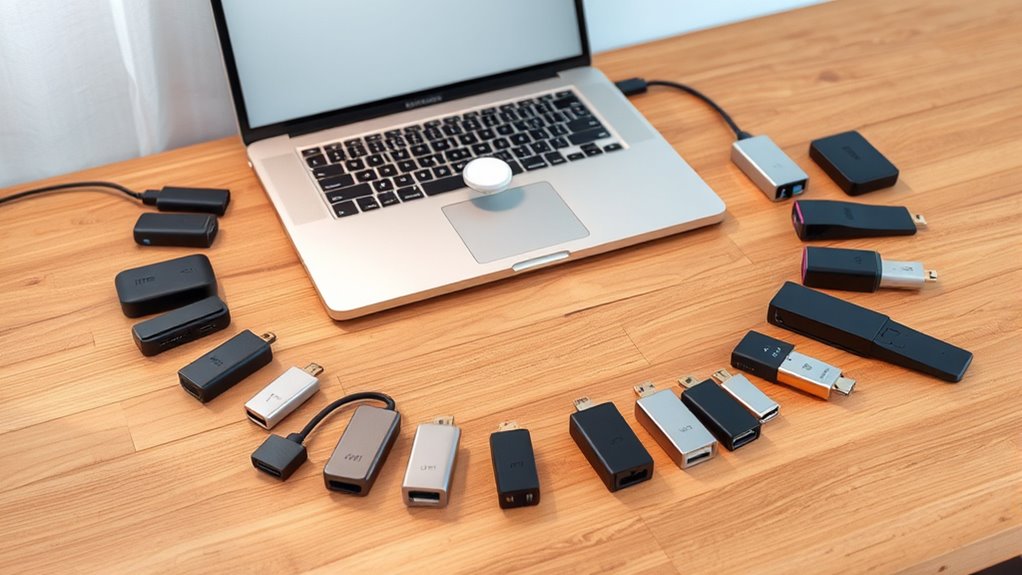

For most MacBook owners, the Anker 547 USB-C Hub is the best overall choice here: its 7-in-2 layout is made for MacBook use, though it suits compatible models better than a universal hub. The Acer 7-in-1 is a strong pick if you want card readers and 100W pass-through charging, while the Wozoyo 11-in-1 targets desk setups that need several display connections. The main tradeoff is between a compact hub that travels easily and a larger adapter with more ports; display limits and power delivery matter just as much as port count. MacBook models also vary in the number of external displays they support, so a hub cannot always add screens beyond the laptop’s own limits. Read on for all 15 options and a guide to choosing the right match.

Get your wardrobe favorites delivered free with Prime
- Fast, free delivery on millions of items
- Prime Video, Amazon Music and more included
- Member-only deals all year
Key Takeaways
- The Anker 547 is the lineup’s MacBook-specific pick, while most other options use a more universal cable-connected design.
- The Wozoyo 11-in-1 and Selore docking station prioritize display connections; their extra video ports are useful only when the MacBook and setup support the intended display arrangement.
- The Acer 7-in-1 pairs 100W pass-through charging with SD card readers, giving it a clearer role for photographers and users who want to keep a card reader at hand.
- The 5-in-1 hubs make the strongest case for simple everyday expansion, but their smaller port sets may call for another adapter as peripherals accumulate.
- The VENTION’s detachable magnetic connector and the MacBook-shaped 7-in-2 designs favor convenience at the laptop, while larger docks are better suited to a fixed desk.
| 8-in-2 USB-C Hub Adapter for MacBook Pro and MacBook Air |  | Best for Thunderbolt Bandwidth | Ports: 8 | HDMI: Up to 4K at 60Hz | Thunderbolt 3: Up to 40Gbps; up to 5K at 60Hz | VIEW ON AMAZON | See Our Full Breakdown |
| Selore 7-in-2 USB-C Hub for MacBook |  | Best for a Balanced MacBook Setup | Ports: 7-in-2: HDMI, Thunderbolt 3, 2 USB-A, USB-C, SD, and MicroSD | HDMI output: Up to 4K at 60Hz | Thunderbolt 3: Up to 40Gbps; 5K at 60Hz on compatible Macs | VIEW ON AMAZON | See Our Full Breakdown |
| Acer 7-in-1 USB-C Hub with 4K HDMI, 100W PD Charging, and SD Card Readers |  | Best for Cross-Platform Use | Ports: 1 HDMI, 2 USB 3.1, 1 USB-C, 1 USB-C PD, MicroSD, and SD | HDMI: 4K at 30Hz | Power Delivery: Up to 100W | VIEW ON AMAZON | See Our Full Breakdown |
| Selore USB-C Docking Station with Dual HDMI, DisplayPort, and VGA |  | Best for Legacy Monitor Connections | Display ports: 2 HDMI, 1 DisplayPort, and 1 VGA | Maximum resolution: 4K at 60Hz via HDMI/DisplayPort; 1080p at 60Hz via VGA | Power Delivery: 100W | VIEW ON AMAZON | See Our Full Breakdown |
| Acer 5-in-1 USB-C Hub with 4K HDMI |  | Best Compact Pick | Ports: HDMI, USB-C 3.0, USB-A 3.0, and USB-A 2.0 | HDMI output: Up to 4K at 60Hz | USB 3.0 data transfer: Up to 5Gbps | VIEW ON AMAZON | See Our Full Breakdown |
| Anker USB C Hub, 5-in-1 USBC to HDMI Splitter with 4K Display | 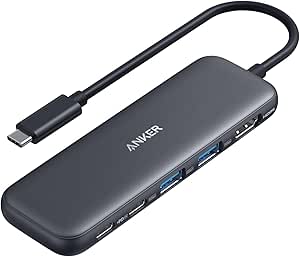 | Best for Faster Everyday Data | Ports: 1 HDMI, 1 USB-C data, 2 USB-A, 1 USB-C PD-IN | HDMI output: Up to 4K at 30Hz | Data transfer: Up to 5 Gbps | VIEW ON AMAZON | See Our Full Breakdown |
| Wozoyo 11-in-1 USB-C Docking Station with Dual HDMI and DisplayPort |  | Best for a Full Desk Setup | Port count: 11 | Video outputs: 2 HDMI and 1 DisplayPort, each up to 4K | USB data: Up to 5 Gbps | VIEW ON AMAZON | See Our Full Breakdown |
| VENTION 6-in-2 USB-C Hub with Detachable Magnetic Connector |  | Best for Thunderbolt Display Setups | Port count: 6 | Ports: 2 USB-C, 1 HDMI, 2 USB-A 3.0, 1 USB-C 3.2 Gen 1 | USB-C bandwidth: Up to 80 Gbps | VIEW ON AMAZON | See Our Full Breakdown |
| Anker 5-in-1 USB-C Hub with 4K HDMI |  | Best for Basic Peripherals | Ports: Power Delivery input, 2 USB-A 2.0, 1 USB-A 3.0, HDMI | Pass-through charging: Up to 90W with 100W input; 10W reserved for hub operation | USB 3.0 data: Up to 5 Gbps | VIEW ON AMAZON | See Our Full Breakdown |
| BENFEI 5-in-1 USB-C Hub with 4K HDMI and 100W Power Delivery |  | Best for a Mix of USB-A Devices | Host interface: USB Type-C | Ports: 1 HDMI, 1 USB-C charging, 3 USB-A | HDMI output: Up to 4K at 30Hz | VIEW ON AMAZON | See Our Full Breakdown |
| INTPW P9 9-in-1 USB-C Hub with 4K HDMI |  | Best for an Angled Desk Setup | Ports: HDMI, USB-C 3.0, 2 USB-A 3.0, 2 USB 2.0, SD, TF, USB-C PD | HDMI output: Up to 4K at 60Hz | USB 3.0 data speed: Up to 5Gbps | VIEW ON AMAZON | See Our Full Breakdown |
| UGREEN USB-C Hub 5-in-1 Multiport Adapter |  | Best for Simple Everyday Expansion | Ports: 1 HDMI, 1 USB-C PD, 3 USB-A | HDMI resolution: 4K | Power Delivery: Up to 100W | VIEW ON AMAZON | See Our Full Breakdown |
| Hiearcool 7-in-1 USB-C Hub for MacBook and USB-C Laptops, Space Gray |  | Best Compact Travel Pick | Ports: HDMI, USB 3.0, USB-C PD, SD, TF | HDMI output: 4K at 30Hz | USB-C PD pass-through: Up to 100W | VIEW ON AMAZON | See Our Full Breakdown |
| Anker 547 USB-C Hub for MacBook, 7-in-2 |  | Best for MacBook Display Flexibility | Ports: Multi-function USB-C, USB-C data, 2 USB-A, HDMI, SD, microSD | Total USB ports: 7 | Maximum charging power: 100W | VIEW ON AMAZON | See Our Full Breakdown |
| Anker 7-in-1 USB-C Hub with 4K@60Hz HDMI, 85W PD Charging, and 5Gbps Data Ports |  | Best for Fast Everyday File Transfers | Ports: HDMI, 2 USB-A 3.0, USB-C data, USB-C PD input, SD, TF | Video output: 4K at 60Hz | Data transfer speed: Up to 5Gbps | VIEW ON AMAZON | See Our Full Breakdown |
| usbc hubs for macbook | Ports | Compatibility | HDMI output |
|---|---|---|---|
| 8-in-2 USB-C Hub Adapter for M | 8 | MacBook Pro (2016–2026) and MacBook Air (2018–2026) | — |
| Selore 7-in-2 USB-C Hub for Ma | 7-in-2: HDMI, Thunderbolt 3, 2 USB-A, USB-C, SD, and MicroSD | MacBook Neo (2026), MacBook Air (2018–2026), and MacBook Pro (2016–2026) | Up to 4K at 60Hz |
| Acer 7-in-1 USB-C Hub with 4K | 1 HDMI, 2 USB 3.1, 1 USB-C, 1 USB-C PD, MicroSD, and SD | MacBook Pro/Air, Windows, ChromeOS, Linux, and Mac OS X 10.5+ | — |
| Selore USB-C Docking Station w | — | Thunderbolt 3/4 and full-function USB-C; Windows and macOS | — |
| Acer 5-in-1 USB-C Hub with 4K | HDMI, USB-C 3.0, USB-A 3.0, and USB-A 2.0 | Windows, macOS, and ChromeOS devices with full-featured USB-C | Up to 4K at 60Hz |
| Anker USB C Hub | 1 HDMI, 1 USB-C data, 2 USB-A, 1 USB-C PD-IN | MacBook (macOS 12+), Windows 10/11, ChromeOS, USB4, Thunderbolt, and DP Alt Mode | Up to 4K at 30Hz |
| Wozoyo 11-in-1 USB-C Docking S | — | macOS, Windows, Android, and iOS | — |
| VENTION 6-in-2 USB-C Hub with | 2 USB-C, 1 HDMI, 2 USB-A 3.0, 1 USB-C 3.2 Gen 1 | MacBook, Windows, iPadOS, Android, and Linux | Up to 8K at 60Hz or 4K at 60Hz |
| Anker 5-in-1 USB-C Hub with 4K | Power Delivery input, 2 USB-A 2.0, 1 USB-A 3.0, HDMI | — | Up to 4K at 30Hz |
| BENFEI 5-in-1 USB-C Hub with 4 | 1 HDMI, 1 USB-C charging, 3 USB-A | — | Up to 4K at 30Hz |
| INTPW P9 9-in-1 USB-C Hub with | HDMI, USB-C 3.0, 2 USB-A 3.0, 2 USB 2.0, SD, TF, USB-C PD | — | Up to 4K at 60Hz |
| UGREEN USB-C Hub 5-in-1 Multip | 1 HDMI, 1 USB-C PD, 3 USB-A | — | — |
| Hiearcool 7-in-1 USB-C Hub for | HDMI, USB 3.0, USB-C PD, SD, TF | MacBook and USB-C laptops | 4K at 30Hz |
| Anker 547 USB-C Hub for MacBoo | Multi-function USB-C, USB-C data, 2 USB-A, HDMI, SD, microSD | — | 4K at 60Hz |
| Anker 7-in-1 USB-C Hub with 4K | HDMI, 2 USB-A 3.0, USB-C data, USB-C PD input, SD, TF | — | — |
More Details on Our Top Picks
8-in-2 USB-C Hub Adapter for MacBook Pro and MacBook Air
This hub suits MacBook owners who need card readers, a 4K display connection, and a fast Thunderbolt link in one aluminum adapter. Its Thunderbolt 3 port supports data transfer up to 40Gbps and displays up to 5K at 60Hz on compatible Macs, giving it a speed advantage over the Acer 7-in-1, whose data ports top out at 5Gbps. HDMI also handles 4K at 60Hz, while pass-through charging accepts up to 100W and delivers up to 85W to the laptop. That range makes this a more capable fit for fast external storage and media workflows than the Acer 5-in-1. The tradeoffs are its model-specific MacBook fit, possible interference from a bottom case, and lack of dual external display support on M1 MacBooks. It also does not support Apple USB SuperDrive and supports only one hard drive.
Pros:- Thunderbolt 3 supports data transfer up to 40Gbps and up to 5K at 60Hz display output on compatible Macs.
- HDMI supports 4K at 60Hz.
- Includes SD and MicroSD readers alongside USB connections.
- Supports up to 100W power input with up to 85W passed through to the laptop.
Cons:- Does not support two external displays on M1 MacBooks.
- May not fit MacBooks with a case on the bottom.
- Does not support Apple USB SuperDrive and supports only one hard drive.
Best for: MacBook Pro and Air owners who use SD cards, a high-resolution monitor, and fast Thunderbolt storage from one adapter.
Not ideal for: M1 MacBook owners who need two separate external displays, or users who keep a protective case on the bottom of their MacBook.
- Ports:8
- HDMI:Up to 4K at 60Hz
- Thunderbolt 3:Up to 40Gbps; up to 5K at 60Hz
- USB 3.0 / USB-C:Up to 5Gbps
- Card readers:SD and MicroSD; up to 104Mbps
- Pass-through charging:Up to 100W input; up to 85W output
- Material:Aluminum
- Compatibility:MacBook Pro (2016–2026) and MacBook Air (2018–2026)
Our verdict“Choose this hub if Thunderbolt speed and card readers matter more than case-friendly fit or dual-display support on an M1 MacBook.”
Selore 7-in-2 USB-C Hub for MacBook
The Selore 7-in-2 is a balanced choice for MacBook owners who want a built-in mix of display, charging, USB, and card-reader connections without a driver setup. Its two USB-A ports and USB-C data port support up to 10Gbps, faster than the 5Gbps USB ports on the Acer 7-in-1 and the Acer 5-in-1. HDMI supports 4K at 60Hz, while Thunderbolt 3 adds up to 40Gbps data transfer and 5K display output on compatible Macs. That makes the Selore better suited to a desk that mixes peripherals with fast storage than the simpler Acer 5-in-1. It also adds up to 15W downstream charging. MacBook display behavior varies by model, though, and the hub is incompatible with cases, so its compact fit depends on a bare laptop edge.
Pros:- Combines HDMI, Thunderbolt 3, two USB-A ports, USB-C data, SD, and MicroSD.
- USB data transfer supports up to 10Gbps.
- HDMI supports 4K at 60Hz and Thunderbolt 3 supports up to 40Gbps data transfer.
- Plug-and-play setup requires no driver.
Cons:- Not compatible with MacBook cases.
- External display capabilities vary by Mac model.
- Laptop charging is limited to the stated 100W maximum, with 15W downstream charging.
Best for: MacBook users who regularly switch between a monitor, USB peripherals, SD cards, and fast external storage.
Not ideal for: MacBook owners who use a case around the hub connection or need guaranteed external-display behavior without checking their Mac model.
- Ports:7-in-2: HDMI, Thunderbolt 3, 2 USB-A, USB-C, SD, and MicroSD
- HDMI output:Up to 4K at 60Hz
- Thunderbolt 3:Up to 40Gbps; 5K at 60Hz on compatible Macs
- USB data transfer:Up to 10Gbps
- Power delivery:Up to 100W laptop charging; 15W downstream charging
- Card reader:SD and MicroSD, UHS-I; up to 104MB/s
- Material:Aluminum
- Compatibility:MacBook Neo (2026), MacBook Air (2018–2026), and MacBook Pro (2016–2026)
Our verdict“Pick the Selore for a broad, fast port mix in a compact MacBook hub, provided your case and display setup are compatible.”
Acer 7-in-1 USB-C Hub with 4K HDMI, 100W PD Charging, and SD Card Readers
This Acer hub makes sense for someone who moves between a MacBook and other computers and values a straightforward set of ports over the latest display refresh rate. Its aluminum body offers HDMI, two USB 3.1 ports, USB-C, and both SD and MicroSD readers, with up to 100W Power Delivery. The broad Windows, macOS, ChromeOS, and Linux compatibility is a stronger fit for mixed-device households than the MacBook-focused Selore 7-in-2. The main compromise is HDMI: its 4K output is limited to 30Hz, while the Selore and Acer 5-in-1 support 4K at 60Hz. That lower refresh rate can make desktop movement feel less fluid on a 4K monitor. USB-C data ports also do not carry video or audio, and the hub needs a 65W or higher charger for optimal PD performance.
Pros:- Works across macOS, Windows, ChromeOS, and Linux devices.
- Includes separate SD and MicroSD card readers.
- Supports up to 100W Power Delivery.
- Aluminum housing supports durability and heat dissipation.
Cons:- HDMI is limited to 4K at 30Hz, below the 60Hz output of the Selore 7-in-2 and Acer 5-in-1.
- USB-C data ports do not support video or audio transmission.
- Requires a 65W or higher charger for optimal Power Delivery performance.
Best for: People who share a hub between a MacBook and Windows, ChromeOS, or Linux devices and need card readers and charging.
Not ideal for: MacBook users who want a smooth 4K 60Hz desktop or expect USB-C data ports to connect a display.
- Ports:1 HDMI, 2 USB 3.1, 1 USB-C, 1 USB-C PD, MicroSD, and SD
- HDMI:4K at 30Hz
- Power Delivery:Up to 100W
- Data transfer:Up to 5Gbps
- Card readers:SD and MicroSD
- Material:Aluminum
- Compatibility:MacBook Pro/Air, Windows, ChromeOS, Linux, and Mac OS X 10.5+
Our verdict“Choose the Acer 7-in-1 for cross-platform flexibility and card access if 4K at 30Hz is sufficient for your display.”
Selore USB-C Docking Station with Dual HDMI, DisplayPort, and VGA
Among these MacBook options, this Selore dock stands out for its unusual range of display connectors: dual HDMI, DisplayPort, and VGA. That can simplify connecting older office or classroom monitors, while the Acer 5-in-1 offers only one HDMI output. The dock also supplies 100W Power Delivery and a compact aluminum body. Its display promise needs careful reading for MacBook buyers, however: macOS is limited to mirroring mode, so the listed four-monitor support does not translate into four independent extended desktops on a Mac. The three USB connections are USB 2.0, capped at 480Mbps, which makes this a poor match for fast storage; the Selore 7-in-2 is much faster for data. Connecting VGA also limits all screens to 1080p.
Pros:- Offers dual HDMI, DisplayPort, and VGA display connections.
- Supports up to 100W Power Delivery.
- Compact, lightweight aluminum housing.
- Compatible with Thunderbolt 3/4 and full-function USB-C laptops.
Cons:- MacBooks are limited to mirroring mode rather than extended displays.
- USB ports are limited to USB 2.0 speeds of 480Mbps.
- Using a VGA monitor limits all screens to 1080p.
Best for: MacBook users who need to connect to older HDMI, DisplayPort, or VGA monitors and are comfortable with mirrored displays.
Not ideal for: MacBook owners seeking multiple independent extended displays or fast transfers from external drives.
- Display ports:2 HDMI, 1 DisplayPort, and 1 VGA
- Maximum resolution:4K at 60Hz via HDMI/DisplayPort; 1080p at 60Hz via VGA
- Power Delivery:100W
- USB ports:2 USB-A 2.0 and 1 USB-C 2.0
- Data transfer:Up to 480Mbps
- Dimensions:4.5 × 2 × 0.62 inches
- Weight:90 g
- Compatibility:Thunderbolt 3/4 and full-function USB-C; Windows and macOS
Our verdict“Choose this dock for connecting a MacBook to mixed-generation monitors, but skip it if you need independent extended screens or fast USB storage.”
Acer 5-in-1 USB-C Hub with 4K HDMI
The Acer 5-in-1 is the leanest fit here for MacBook owners who mainly want a monitor connection, a few USB ports, and charging. It supports 4K at 60Hz and up to 90W pass-through charging, making it a more responsive display option than the Acer 7-in-1, whose HDMI tops out at 30Hz. The Selore 7-in-2 offers more connections, including Thunderbolt 3 and card readers, but that broader set may be unnecessary if your workflow only calls for USB-A and USB-C accessories. This Acer keeps the setup simpler, with USB 3.0 ports supporting up to 5Gbps. It does require a full-featured USB-C port with DisplayPort Alt Mode, and the power adapter and cable are not included. Ultrawide monitor users should also look elsewhere.
Pros:- HDMI supports 4K at 60Hz.
- Passes through up to 90W of laptop charging.
- Includes USB-C 3.0, USB-A 3.0, and USB-A 2.0 ports.
- Compact aluminum design suits portable MacBook setups.
Cons:- Requires a full-featured USB-C port with DisplayPort Alt Mode.
- Power adapter and cable are not included.
- Ultrawide monitors are not supported.
Best for: MacBook Air owners who want a portable hub for one 4K monitor, routine USB accessories, and pass-through charging.
Not ideal for: Photographers needing built-in card readers, ultrawide monitor users, or buyers expecting an included power adapter and cable.
- Ports:HDMI, USB-C 3.0, USB-A 3.0, and USB-A 2.0
- HDMI output:Up to 4K at 60Hz
- USB 3.0 data transfer:Up to 5Gbps
- Power input:Up to 100W USB-C PD
- Laptop charging output:Up to 90W
- Material:Aluminum
- Compatibility:Windows, macOS, and ChromeOS devices with full-featured USB-C
- Monitor support:Ultrawide monitors are not supported
Our verdict“Pick the Acer 5-in-1 for a compact MacBook setup with 4K 60Hz video and basic USB expansion, if you do not need card readers.”
Anker USB C Hub, 5-in-1 USBC to HDMI Splitter with 4K Display
This Anker is a practical match for a MacBook user who needs a monitor, two USB-A accessories, a USB-C data device, and charging through one hub. Its three 5 Gbps data ports give it an edge over the Anker 5-in-1 USB-C Hub with 4K HDMI, whose two USB-A 2.0 ports are limited to slower transfers. The tradeoff is display smoothness: this model tops out at 4K at 30Hz, so scrolling and motion can feel less fluid than on a 60Hz display setup. It passes through up to 85W, though you supply the charger, and the USB-C PD-IN port is for power only. I’d shortlist it for a compact desk setup with modest display needs; Linux users should skip it.
Pros:- Three data ports support speeds up to 5 Gbps.
- HDMI connects an external display at up to 4K.
- Passes through up to 85W to a connected laptop.
- Supports MacBook, USB4, and Thunderbolt hosts with video output.
Cons:- 4K HDMI is limited to 30Hz.
- The USB-C PD-IN port handles charging only.
- A compatible charger is not included, and Linux is unsupported.
Best for: MacBook owners who need several 5 Gbps ports, one external 4K display, and pass-through charging for everyday desk work.
Not ideal for: Linux users and buyers who want 4K at 60Hz or need the charging input to carry data.
- Ports:1 HDMI, 1 USB-C data, 2 USB-A, 1 USB-C PD-IN
- HDMI output:Up to 4K at 30Hz
- Data transfer:Up to 5 Gbps
- Pass-through charging:Up to 85W
- Compatibility:MacBook (macOS 12+), Windows 10/11, ChromeOS, USB4, Thunderbolt, and DP Alt Mode
- Linux support:Not compatible
- Warranty:18 months
Our verdict“Choose this Anker if faster USB transfers matter more than 4K display refresh rate or Linux support.”
Wozoyo 11-in-1 USB-C Docking Station with Dual HDMI and DisplayPort
The Wozoyo packs more kinds of connections than the compact five-port Anker hubs: it adds Gigabit Ethernet, SD and TF readers, and AUX alongside USB ports and three video outputs. That makes it the better fit for a MacBook that stays connected to wired networking, cards, audio, and a monitor at a desk. Its display array needs a Mac-specific caveat: macOS mirrors external displays and does not provide independent triple displays, so three outputs do not mean three separate extended screens. The 15 cm cable keeps the dock close to the laptop, which may constrain placement. Compared with the VENTION 6-in-2, it trades a direct, detachable magnetic connection for broader desk connectivity and a flexible cable.
Pros:- Combines USB, Ethernet, SD and TF readers, and AUX.
- Includes two HDMI outputs and one DisplayPort output.
- Supports up to 100W Power Delivery.
- Compact dock body with a flexible 15 cm cable.
Cons:- macOS mirrors external displays and does not support independent triple displays.
- The 15 cm cable limits placement distance.
Best for: MacBook desk users who need wired Ethernet, SD or TF card access, audio, and a monitor connection from one dock.
Not ideal for: Mac users seeking independent triple-screen output, or anyone who needs a long cable to position a dock away from the laptop.
- Port count:11
- Video outputs:2 HDMI and 1 DisplayPort, each up to 4K
- USB data:Up to 5 Gbps
- Power Delivery:Up to 100W
- Ethernet:1 Gbps
- Card readers:SD and TF
- Cable length:15 cm
- Compatibility:macOS, Windows, Android, and iOS
- Warranty:2 years
Our verdict“Pick the Wozoyo for a MacBook desk that needs networking, card readers, audio, and display connections in one dock.”
VENTION 6-in-2 USB-C Hub with Detachable Magnetic Connector
For a compatible MacBook, the VENTION is the display-focused option in this group: its HDMI output can reach 4K at 60Hz or 8K at 60Hz, while its magnetic connector detaches from the hub. That high-resolution ceiling sets it apart from both Anker five-port hubs, which stop at 4K at 30Hz. The headline capability depends on the host, though; 8K requires Thunderbolt, and a case on the bottom of the MacBook may prevent the connector from fitting properly. Up to 140W pass-through charging is generous, but the provided details do not specify data speed for every port. I’d favor the Wozoyo if Ethernet and card readers matter more; choose this VENTION for a compatible Thunderbolt display setup with a low-profile connection.
Pros:- HDMI supports up to 4K at 60Hz and, on a Thunderbolt host, 8K at 60Hz.
- Detachable magnetic USB-C connector.
- Pass-through charging supports up to 140W.
- Aluminum alloy enclosure.
Cons:- A bottom case on the MacBook may interfere with fit.
- 8K output requires a Thunderbolt-enabled host.
- The listed port data does not give a clear transfer rate for every port.
Best for: MacBook owners with a Thunderbolt-capable host and high-resolution display who want a detachable magnetic hub connection.
Not ideal for: MacBook users with a bottom case that obstructs the connector, or buyers who need Ethernet or card readers.
- Port count:6
- Ports:2 USB-C, 1 HDMI, 2 USB-A 3.0, 1 USB-C 3.2 Gen 1
- USB-C bandwidth:Up to 80 Gbps
- HDMI output:Up to 8K at 60Hz or 4K at 60Hz
- Pass-through charging:Up to 140W
- Materials:Aluminum alloy
- Compatibility:MacBook, Windows, iPadOS, Android, and Linux
Our verdict“Choose the VENTION if your MacBook supports the display mode you need and its magnetic connector fits your setup.”
Anker 5-in-1 USB-C Hub with 4K HDMI
This Anker suits a MacBook owner whose regular accessories are a keyboard, mouse, or other low-bandwidth USB gear, plus one external display and a charging connection. Its mix of two USB-A 2.0 ports and one USB-A 3.0 port gives those slower accessories dedicated connections while keeping one faster port available for a drive. That split makes it less flexible for frequent file transfers than the Anker USB C Hub, which provides 5 Gbps data across both USB-A ports and its USB-C data port. Both models cap HDMI at 4K at 30Hz, and this hub reserves 10W for operation, passing through up to 90W from a 100W input. There is no charger in the box, and Linux is unsupported.
Pros:- Connects two USB-A 2.0 devices and one USB-A 3.0 device.
- Passes through up to 90W from a 100W power input.
- Supports 4K HDMI in mirror or extend mode.
- Works with macOS 12 and newer.
Cons:- Two USB-A ports are limited to 480 Mbps.
- HDMI is limited to 4K at 30Hz.
- Wall charger is not included, and Linux is unsupported.
Best for: MacBook users connecting basic USB-A accessories, one external display, and a charger through a single hub.
Not ideal for: People who regularly transfer large files over USB or need 4K at 60Hz, Linux support, or a bundled charger.
- Ports:Power Delivery input, 2 USB-A 2.0, 1 USB-A 3.0, HDMI
- Pass-through charging:Up to 90W with 100W input; 10W reserved for hub operation
- USB 3.0 data:Up to 5 Gbps
- USB 2.0 data:Up to 480 Mbps
- HDMI output:Up to 4K at 30Hz
- Operating systems:macOS 12 and newer, Windows 10/11, and ChromeOS
- Host requirements:USB-C port with DP Alt Mode and Power Delivery
- Linux support:Not compatible
- Warranty:18 months
Our verdict“Choose this Anker for basic accessories and charging, but pick the other Anker five-port hub for more consistently fast data connections.”
BENFEI 5-in-1 USB-C Hub with 4K HDMI and 100W Power Delivery
BENFEI earns a place for MacBook owners who need to connect several USB-A devices but still want a USB-C charging input and HDMI. Its three USB-A ports give it more room for peripherals than either Anker five-port hub, while the USB 3.2 port supports transfers up to 10 Gbps for compatible devices. That speed advantage applies to the listed USB 3.2 port; the product details do not say that all three USB-A ports run at that rate. Like the Anker hubs, it limits 4K HDMI to 30Hz, which is adequate for a static work display but less fluid than 60Hz. The aluminum body and woven 20 cm cable round out a compact design. Check that your MacBook USB-C port supports video output before relying on HDMI.
Pros:- Three USB-A ports accommodate multiple accessories.
- Listed USB 3.2 port supports transfers up to 10 Gbps.
- Passes through up to 90W while reserving 10W for the hub.
- Aluminum enclosure and 20 cm woven cable.
Cons:- HDMI output tops out at 4K at 30Hz.
- USB-C port is for charging only, with no data or video.
- HDMI requires a host USB-C port that supports video output.
Best for: MacBook users who need three USB-A connections, pass-through charging, and a faster port for compatible storage.
Not ideal for: Buyers who want 4K at 60Hz, need USB-C data or video from the hub’s charging port, or have a host without USB-C video output.
- Host interface:USB Type-C
- Ports:1 HDMI, 1 USB-C charging, 3 USB-A
- HDMI output:Up to 4K at 30Hz
- Pass-through charging:Up to 90W; 10W reserved for hub operation
- USB data transfer:Up to 10 Gbps on the USB 3.2 port
- Cable:20 cm silicone woven
- Enclosure:Aluminum
- Warranty:18 months
Our verdict“Pick BENFEI if three USB-A connections and a 10 Gbps port suit your setup better than the Anker hubs’ slower 4K display limit.”
INTPW P9 9-in-1 USB-C Hub with 4K HDMI
The INTPW P9 suits a fixed desk where a hub can sit beside the MacBook, with its 32-degree angled aluminum body keeping ports easy to reach. Its mix of HDMI, three USB 3.0 ports, two USB 2.0 ports, and SD and TF readers covers more kinds of accessories than the UGREEN 5-in-1, which has fewer connections but a simpler footprint. The P9 also supports 4K at 60Hz and up to 100W pass-through charging, useful for a sharp external display while powering the laptop. The tradeoff is that it is less travel-friendly than the compact Hiearcool, and its PD port carries power only. You will need your own adapter, and the MacBook’s USB-C port must support DisplayPort Alt Mode or Thunderbolt for HDMI video.
Pros:- Combines HDMI, card readers, and five USB-A ports
- Supports HDMI up to 4K at 60Hz
- Angled aluminum design keeps ports accessible on a desk
- Supports up to 100W power pass-through
Cons:- Power adapter is not included
- USB-C PD port does not transfer data or video
- HDMI requires a compatible DisplayPort Alt Mode or Thunderbolt connection
Best for: MacBook owners building a desk setup who want card readers, several USB-A ports, and an angled hub in one unit
Not ideal for: Frequent travelers or buyers who need USB-C data or video through the hub’s PD port
- Ports:HDMI, USB-C 3.0, 2 USB-A 3.0, 2 USB 2.0, SD, TF, USB-C PD
- HDMI output:Up to 4K at 60Hz
- USB 3.0 data speed:Up to 5Gbps
- Card reader speed:Up to 104MB/s
- Power delivery:Up to 100W pass-through
- Cable length:About 19.7 inches
- Material and design:Aluminum body with 32-degree angle and rubber mats
Our verdict“Choose the INTPW P9 for a port-rich desk setup with an angled layout, provided you supply a charger and do not need USB-C data from the hub.”
UGREEN USB-C Hub 5-in-1 Multiport Adapter
The UGREEN 5-in-1 is a straightforward pick for MacBook owners who mainly need an external display, charging pass-through, and a few USB-A connections. It has three USB-A ports, but only one reaches 5Gbps; the other two top out at 480Mbps, so they fit keyboards, mice, and other modest-speed accessories better than fast storage. Compared with the INTPW P9, it gives up card readers and extra ports, while taking a more focused approach to everyday peripherals. Its 4K HDMI and 100W PD support make the key laptop connections available without adding a larger hub. The compromise is limited expansion: there are just five ports, and the single high-speed USB-A connection may become a bottleneck if you often move large files while several accessories are attached.
Pros:- Adds HDMI, power pass-through, and three USB-A ports
- Supports 4K HDMI output
- Up to 100W Power Delivery pass-through
- Compact port selection for basic peripheral setups
Cons:- Only one USB-A port supports 5Gbps data
- Two USB-A ports are limited to 480Mbps
- Five ports may be restrictive for a full desk setup
Best for: MacBook users who connect a monitor, charge through the hub, and use a small set of USB-A accessories
Not ideal for: Photographers or multi-device desk users who need card slots, several fast ports, or broader expansion
- Ports:1 HDMI, 1 USB-C PD, 3 USB-A
- HDMI resolution:4K
- Power Delivery:Up to 100W
- High-speed USB-A:1 port up to 5Gbps
- Additional USB-A ports:2 ports up to 480Mbps
Our verdict“Pick the UGREEN for a simple monitor-and-peripherals setup, but choose the INTPW P9 if you need card readers or more connections.”
Hiearcool 7-in-1 USB-C Hub for MacBook and USB-C Laptops, Space Gray
The Hiearcool’s compact aluminum design combines display, charging, USB 3.0, and SD and TF card access in a travel-friendly hub. That makes it a better fit for a laptop bag than the angled INTPW P9, whose broader port selection and desk-oriented shape favor a permanent setup. It also supports up to 100W pass-through charging, so you can keep the laptop powered while using the hub, and its USB 3.0 connection reaches 5Gbps for data. The main display limitation is 4K at 30Hz, below the 60Hz output offered by the Anker 7-in-1. That lower refresh rate can feel less fluid for everyday desktop motion. As with other hubs in this group, the MacBook’s USB-C connection must support video output.
Pros:- Compact aluminum body suited to travel
- Combines HDMI, USB 3.0, and SD and TF readers
- Supports up to 100W charging pass-through
- USB 3.0 data transfer reaches 5Gbps
Cons:- 4K HDMI output is limited to 30Hz
- Requires a laptop USB-C port that supports video output
Best for: MacBook travelers who need a compact hub with card readers, charging pass-through, and a monitor connection
Not ideal for: Users who want smoother 4K desktop output at 60Hz or several USB-A ports
- Ports:HDMI, USB 3.0, USB-C PD, SD, TF
- HDMI output:4K at 30Hz
- USB-C PD pass-through:Up to 100W
- USB 3.0 data transfer:Up to 5Gbps
- Material:Aluminum
- Color:Space Gray
- Compatibility:MacBook and USB-C laptops
Our verdict“Choose the Hiearcool for compact travel connectivity and card access, but favor the Anker 7-in-1 if 4K at 60Hz matters more.”
Anker 547 USB-C Hub for MacBook, 7-in-2
The Anker 547 is the most MacBook-specific choice here, pairing seven ports with HDMI up to 4K at 60Hz and a multi-function USB-C output that can reach 5K at 60Hz. That display option sets it apart from the Hiearcool 7-in-1, whose HDMI output is limited to 4K at 30Hz. The compact 7-in-2 layout also includes SD and microSD readers, USB-A, and charging up to 100W, making it useful for laptop users who switch between peripherals and high-resolution displays. Its plastic enclosure is a less premium material than the aluminum INTPW P9. MacBook display support also has limits: M1, M2, and M3 models do not support dual external displays, and this hub is not compatible with MacBook Neo. Check your exact MacBook model before choosing it.
Pros:- Seven-port layout in a compact 7-in-2 design
- HDMI output supports 4K at 60Hz
- Multi-function USB-C display output supports up to 5K at 60Hz
- Supports up to 100W charging and includes SD and microSD slots
Cons:- Not compatible with MacBook Neo
- M1, M2, and M3 MacBooks do not support dual external displays through this setup
- Plastic enclosure rather than aluminum
Best for: MacBook Air and Pro owners who want a compact hub with high-resolution display options and SD and microSD access
Not ideal for: MacBook Neo owners or users with M1, M2, or M3 MacBooks seeking dual external displays
- Ports:Multi-function USB-C, USB-C data, 2 USB-A, HDMI, SD, microSD
- Total USB ports:7
- Maximum charging power:100W
- Maximum data transfer rate:40Gb/s
- HDMI output:4K at 60Hz
- USB-C display output:Up to 5K at 60Hz
- Dimensions and weight:4.72 × 1.14 × 0.39 in; 1.92 oz
- Compatibility and enclosure:MacBook Air and MacBook Pro; not MacBook Neo; plastic, gray
Our verdict“Choose the Anker 547 if your compatible MacBook needs compact, high-resolution display and card-reader connections, after checking your model’s display limits.”
Anker 7-in-1 USB-C Hub with 4K@60Hz HDMI, 85W PD Charging, and 5Gbps Data Ports
This Anker 7-in-1 makes a strong case for MacBook owners who move files between a laptop, USB storage, and camera cards: its USB-A and USB-C data ports reach 5Gbps, and it includes both SD and TF slots. HDMI supports 4K at 60Hz, matching the INTPW P9’s refresh rate in a more compact seven-port layout. The key compromise is charging: although the input can accept up to 100W, laptop output is capped at 85W, below the 100W pass-through offered by the Hiearcool and Anker 547. Its USB-C data port also cannot send video, so display output is limited to HDMI. For a MacBook desk or travel setup centered on data and card access, that is a clear tradeoff; users needing maximum charging or USB-C display output should look elsewhere.
Pros:- HDMI supports 4K at 60Hz
- USB-A and USB-C data connections support up to 5Gbps
- Includes SD and TF card slots
- Compact seven-port expansion
Cons:- Laptop charging output is capped at 85W
- USB-C data port does not support video projection
Best for: MacBook users who regularly transfer files through USB-A, USB-C data, and SD or TF cards
Not ideal for: Owners who need 100W laptop charging or want video output through a USB-C port
- Ports:HDMI, 2 USB-A 3.0, USB-C data, USB-C PD input, SD, TF
- Video output:4K at 60Hz
- Data transfer speed:Up to 5Gbps
- Charging output:Up to 85W
- Power input:Up to 100W
- Warranty:18 months
Our verdict“Choose this Anker for fast everyday data access and 4K HDMI, but pick the Anker 547 if you need USB-C display output or up to 100W charging.”

How We Picked
I compared these hubs by how well their stated port combinations match common MacBook setups: connecting displays, storage, card readers, wired accessories, and a charger. I gave more weight to clear, useful combinations than to the largest port count alone. For display-focused options, I considered the range of listed video connections and the need to check both MacBook display limits and the hub’s supported modes. For travel and laptop-side use, connector style, compactness, and how closely the design depends on a MacBook’s port layout shaped their fit.
The ordering reflects those differences in intended use. The Anker 547 leads for its MacBook-specific 7-in-2 approach; the Acer 7-in-1 follows as a versatile option with charging and card readers; and larger docks rank higher for buyers who can use their extra display connections. Simpler 5-in-1 models remain sensible picks for basic expansion, but they rank below options that cover more distinct needs. Product names and listed specifications alone do not confirm compatibility with every MacBook generation, external display configuration, or charger, so I treat model-specific compatibility as something buyers should verify.
Factors to Consider When Choosing Usbc Hubs For Macbook
Choosing a MacBook hub starts with your laptop model and the setup you want to connect. A short port list can be enough for one monitor and a mouse; a home office with several displays, wired networking, and removable media may call for a dock. These broader checks help prevent mismatches that a port count alone can hide.
Check your MacBook’s display limits first
Start with the exact MacBook model and chip, then confirm how many external displays it supports and at what resolutions and refresh rates. A hub with two HDMI ports does not automatically mean your MacBook can run two independent external screens through it. Some multi-display arrangements depend on the laptop’s native support, the hub’s display technology, or specific software. Also check whether the displays can run at the same time as the built-in screen. This matters most with the Wozoyo and Selore docks, whose extra video connections are only useful if your MacBook can drive the arrangement you have in mind. Match the hub’s stated display modes to your actual monitors before buying.
Treat pass-through charging as a shared power budget
A hub’s power delivery rating describes what it can accept or pass through under its stated conditions, not necessarily what reaches the MacBook. The hub itself may use some power, and the charger must supply enough wattage for both the laptop and connected devices. A 100W pass-through label, such as the one listed for the Acer 7-in-1 and BENFEI 5-in-1, does not mean a 100W charger is included. If your MacBook draws substantial power, check the laptop’s charging needs and leave room for the hub’s overhead. Low-powered charging may be fine for light use but can charge slowly under heavy workloads. Confirm the hub’s documentation for charging behavior while its ports are in use.
Count the ports you will use at the same time
Make a short list of devices that need to stay connected together, not just every accessory you own. A five-port hub may cover a monitor, charger, and a couple of USB devices, while a larger dock can add card readers and more video connections. Look closely at the type of each port: USB-A, USB-C data, USB-C charging, SD, and microSD serve different jobs. A USB-C port on a hub may not carry video or power in the direction you expect. Consider which ports will be blocked by wide plugs or cables next to each other, especially on compact laptop-side adapters. This simple inventory often reveals whether a compact Anker or UGREEN-style hub is enough or a dock makes more sense.
Choose a connector style that fits your MacBook and routine
Some 7-in-2 hubs are shaped to connect directly to ports on the side of a MacBook, while cable-connected hubs work across a wider range of laptops and port layouts. Direct-fit designs can reduce cable clutter, but they depend on compatible port spacing and may be less convenient with a case or a different laptop. The VENTION’s detachable magnetic connector adds flexibility to its connection approach, though buyers should confirm which connector is supplied and supported. A short integrated lead can be handy in a bag, but it may put strain on the laptop port if the hub hangs unsupported. For desk use, a cable-connected dock can sit farther from the computer and make cable routing easier. Think about where the hub will sit and how often you pack it away.
Match data speeds to the devices that need them
Not every USB port on a hub transfers data at the same speed, and charging ports may not transfer data at all. For keyboards, mice, and occasional peripherals, basic USB speeds are usually sufficient. External SSDs and frequent large file transfers benefit from faster data connections, so check the stated speed for the specific port you plan to use. Card readers also vary: having SD and microSD slots is convenient, but it does not tell you how quickly files will transfer. A hub can share bandwidth among connected devices, so simultaneous transfers may perform differently than a single-device connection. Prioritize documented speeds for your storage workflow instead of inferring performance from the total number of ports.
Pay for a dock when the setup will make use of it
A larger dock can replace several adapters at a permanent workstation, but extra connections add little value if your routine only needs a monitor and a few accessories. The Selore and Wozoyo models list multiple video outputs, which may fit a fixed desk better than a lightweight travel setup. On the other hand, a compact hub is easier to carry and quicker to connect, though it may leave you reaching for another adapter later. Build details such as cable length, connector fit, and space around neighboring ports affect daily convenience more than a headline port count. Before choosing a larger model, check its physical footprint and whether its ports sit where your desk cables can reach. The best fit is the hub whose connections you will use regularly without making your laptop setup awkward.
Frequently Asked Questions
Can any of these hubs run two external monitors from my MacBook?
No hub can override the external-display limit of a MacBook model. The Wozoyo 11-in-1 and Selore docking station list several video outputs, but that alone does not confirm that two independent screens will work with your laptop. Check your MacBook’s chip-specific display support, then compare it with the hub’s instructions for simultaneous output, resolution, and refresh rate. Also confirm whether the screens will mirror or extend the desktop. If you need a particular multi-monitor setup, verify that exact arrangement before choosing a hub.
Does a hub marked 100W charge my MacBook at 100W?
Not necessarily. A 100W pass-through rating refers to the hub’s stated power handling, and some power can be used by the hub or connected devices. You also need a separate compatible USB-C charger with enough output for your MacBook and the hub’s overhead. The Acer 7-in-1 and BENFEI 5-in-1 list 100W power delivery, but check their documentation for the power that reaches the laptop. Compare that figure with your MacBook’s charging needs, especially if you work under heavy load.
Should I choose a 7-in-2 hub that attaches directly to my MacBook?
A direct-fit 7-in-2 design can keep a laptop-side setup tidy, and the Anker 547 is the clearest MacBook-focused example in this lineup. Its fit depends on the MacBook’s port layout and spacing, so check the supported models and whether a case will get in the way. A cable-connected hub is usually more flexible across laptop models and can sit away from the computer. Direct-fit hubs may also put more physical leverage on the laptop ports if bumped. Choose one if a close, compact connection suits your setup and confirmed compatibility.
Is an 11-in-1 dock a better choice than a 5-in-1 hub?
Only if you will use the extra connections. The Wozoyo 11-in-1 is aimed at a desk setup with more display and peripheral needs, while a 5-in-1 option may be easier to pack and simpler for a monitor, charger, and a few accessories. More ports can also mean a larger unit and more cables to manage. Count the devices you need connected at once, then check whether the MacBook supports any multi-display configuration you plan to use. A smaller hub is often the practical choice when most of the dock’s ports would sit unused.
What should I check before using a hub with an external SSD or SD card?
Check the transfer speed of the exact USB or card-reader port you plan to use; the hub’s overall port count does not reveal it. Confirm whether the USB-C port supports data, since a port dedicated to power may not connect an SSD. For SD cards, check that the reader supports your card type and the workflow you need. If you often copy large files, look for published speeds and allow for shared bandwidth when other devices are active. These checks help distinguish a hub that merely adds a connection from one suited to regular media transfers.
Conclusion
For the best overall fit, choose the Anker 547 if your MacBook is compatible with its 7-in-2 design and you want a tidy laptop-side setup. For value in everyday expansion, compare the Acer 5-in-1, Anker 5-in-1, and UGREEN 5-in-1 by the specific ports you need; their simpler layouts make more sense than a large dock for basic use. Beginners who want a clear mix of charging, display, and card-reader connections can start with the Acer 7-in-1. The Wozoyo 11-in-1 is the premium-style choice for a fixed workstation that can use its extra display connections, while the VENTION stands out for buyers who prefer a detachable magnetic connector. Before deciding, match the hub’s display modes, charging details, and connector fit to your exact MacBook model.
Halloween Picks
halloween
As an affiliate, we earn on qualifying purchases.